18:26
Telegram launches Money, its built-in crypto wallet: Here's how it works

15:05
Telegram Desktop vulnerability allowed attackers to steal files with one click

12:33
Anthropic will ban repeated abuse of Claude under new usage rules

12:02
Apple could unveil its first touchscreen MacBook Pro on October 27

11:46
Meta bans TikTok ads on Facebook and Instagram in seven countries

11:25
Apple reportedly cuts iPhone 18 Pro orders just weeks after launch
18:26
Telegram launches Money, its built-in crypto wallet: Here's how it works
15:05
Telegram Desktop vulnerability allowed attackers to steal files with one click
12:33
Anthropic will ban repeated abuse of Claude under new usage rules
12:02
Apple could unveil its first touchscreen MacBook Pro on October 27
11:46
Meta bans TikTok ads on Facebook and Instagram in seven countries
11:25
Apple reportedly cuts iPhone 18 Pro orders just weeks after launch
18:26
Telegram launches Money, its built-in crypto wallet: Here's how it works
15:05
Telegram Desktop vulnerability allowed attackers to steal files with one click
12:33
Anthropic will ban repeated abuse of Claude under new usage rules
12:02
Apple could unveil its first touchscreen MacBook Pro on October 27
11:46
Meta bans TikTok ads on Facebook and Instagram in seven countries
11:25
Apple reportedly cuts iPhone 18 Pro orders just weeks after launch
18:26
Telegram launches Money, its built-in crypto wallet: Here's how it works
15:05
Telegram Desktop vulnerability allowed attackers to steal files with one click
12:33
Anthropic will ban repeated abuse of Claude under new usage rules
12:02
Apple could unveil its first touchscreen MacBook Pro on October 27
11:46
Meta bans TikTok ads on Facebook and Instagram in seven countries
11:25
Apple reportedly cuts iPhone 18 Pro orders just weeks after launch

Creating a Telegram Channel: A Practical Guide to the Platform’s Toolkit
The secret behind successful Telegram channels is surprisingly straightforward: while creating a channel takes just minutes, building one that effectively reaches your audience requires understanding the platform's unique broadcasting model and avoiding common configuration mistakes that doom most channels to invisibility.
Many users confuse channels with groups, leading to chaotic communication and missed opportunities for direct audience engagement.
We explain how to create a Telegram channel correctly in 2026, covering every platform, essential configuration settings, and proven strategies for content delivery and audience growth that actually work.
Understanding Telegram Channels: What Makes Them Different
Before creating your channel, it's essential to understand what channels are and how they differ from other Telegram features.
Channels vs Groups: Key Differences
Important to note: Channels are fundamentally different communication tools designed for specific purposes.
For this, you need to choose: Channels for broadcasting content to large audiences where only you post. Groups for interactive discussions where participants communicate with each other.
Creating a Channel on Mobile Devices
The mobile app provides the most comprehensive channel creation experience with all features available immediately.
Creating a Channel on Android
For this, you need to follow these steps:
- Open Telegram and locate the pencil icon at the bottom right
- Tap "New Channel" from the menu options
- Enter channel information:
- Channel name (up to 255 characters) - make it descriptive and memorable
- Description (optional but recommended) - explain your channel's purpose clearly
- Profile photo - tap the camera icon to add recognizable branding
4. Tap "Next" to proceed to privacy settings
5. Choose channel type:
- Public channel - requires unique username (5-32 characters, letters/numbers/underscores only)
- Private channel - Telegram generates invitation link automatically
6. Configure content protection if needed:
- Enable "Restrict Saving Content" to prevent forwarding and screenshots
7. Add initial subscribers (optional) or skip this step
8. Tap "Done" to create your channel
Creating a Channel on iPhone
The iOS process follows the same logic with minor interface differences:
For this, you need to:
- Open Telegram and tap the compose message icon (top right)
- Select "New Channel" from the menu
- Complete channel setup:
- Enter name and description
- Upload profile photo
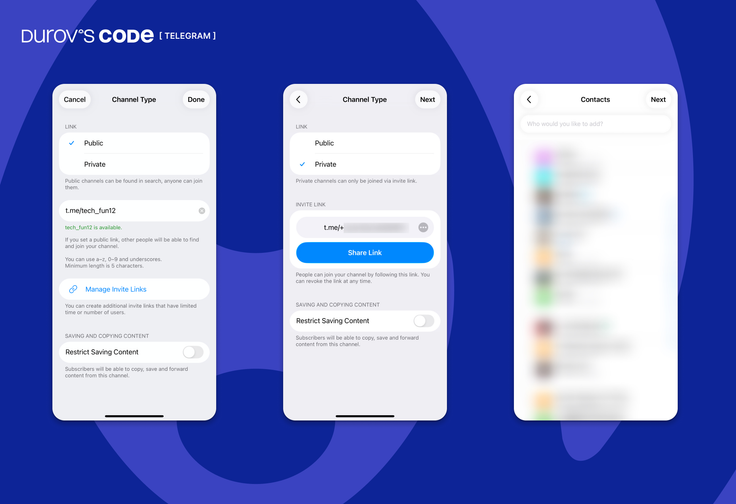
- Choose public or private type
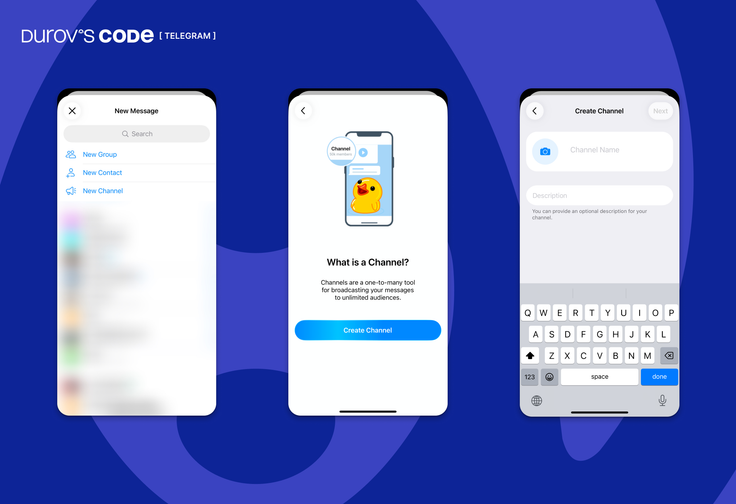
4. Set permanent link for public channels
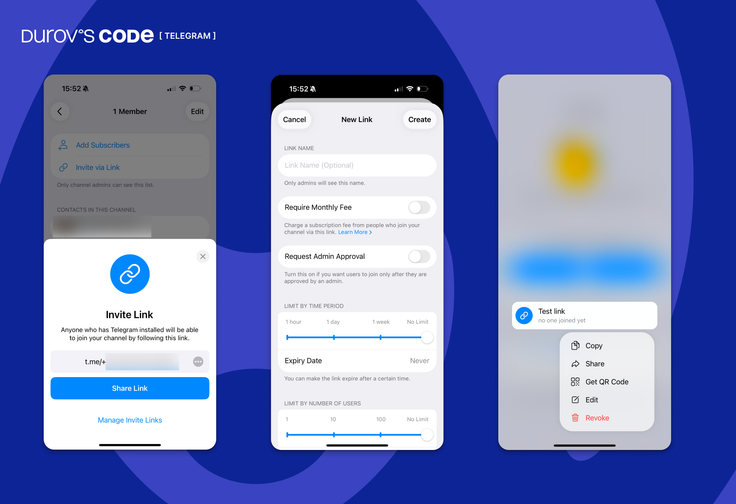
5. Configure restrictions as needed
6. Finalize creation by tapping "Create"
Important to note: The channel username you choose becomes your permanent identifier. While usernames can technically be changed later through channel settings, this breaks existing links and may confuse subscribers, so choose carefully from the start.
Creating a Channel on Desktop
Desktop clients offer identical functionality with interfaces optimized for larger screens and easier bulk operations.
Desktop Creation Process
For this, you need to:
- Open Telegram Desktop (Windows, macOS, or Linux)
- Click the menu icon (hamburger menu or pencil icon)
- Select "New Channel" from dropdown
- Configure channel details:
- Enter name and description
- Upload high-quality profile image
- Set privacy type and username
5. Complete setup by clicking "Create"
Web Version Creation
The web client (web.telegram.org) mirrors desktop functionality completely, allowing channel creation from any browser without installing applications.
Essential Channel Configuration
Creating the channel structure is just the beginning. Proper configuration determines functionality and user experience.
Basic Settings Configuration
For this, you need to access channel settings:
- Open your channel and tap/click the channel name
- Select "Edit" to access all configuration options
Critical settings to configure immediately:
Channel information:
- Name: Concise, brandable, reflects content theme
- Description: Clear explanation of what subscribers receive
- Profile photo: High-quality, recognizable imagery consistent with branding
Privacy and access:
- Public channels: Custom username becomes permanent t.me link
- Private channels: Invitation links can be regenerated if compromised
Advanced Channel Features
Discussion groups integration:
Channels can link to discussion groups where subscribers comment on posts while keeping the main channel clean.
For this, you need to:
- Navigate to Channel Settings → Discussion
- Select "Create Group" or link existing group
- Telegram automatically creates and manages the connection
- All post comments appear in linked group with proper threading
Benefits:
- Enables subscriber feedback without cluttering main feed
- Easier moderation with centralized comment management
- Maintains professional channel appearance
Reaction management:
Control which emoji reactions subscribers can use on posts.
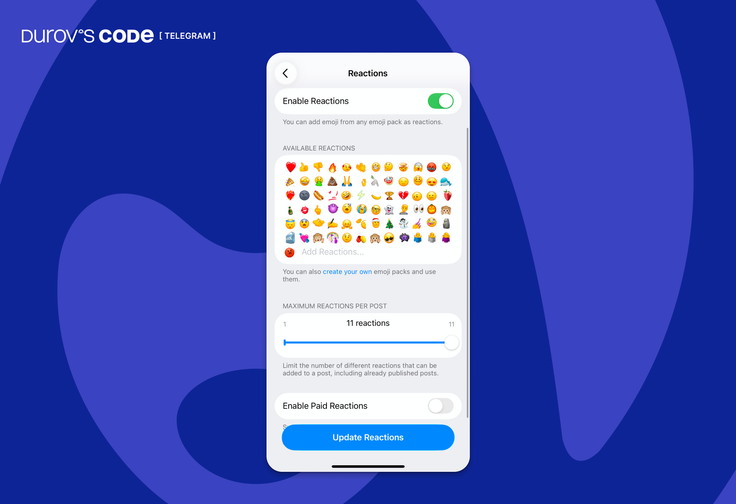
Configuration steps:
- Open Channel Settings → Reactions
- Choose from available options:
- All reactions - full emoji selection
- Custom set - specific reactions only
- Disabled - no reactions allowed
Admin signatures:
When multiple people manage your channel, signatures show which admin posted content.
For this, you need to:
- Go to Channel Settings → Administrators
- Enable "Sign Messages"
- Each admin's posts display their chosen name (not profile link)
Content Protection and Security
Important to note: Telegram offers granular control over content interaction and channel security.
Content Restriction Options
"Restrict Saving Content" feature prevents:
- Message forwarding from your channel
- Media file downloads
- Screenshot capability (shows blank screen)
- Text copying from messages
Trade-offs to consider:
- Increases content exclusivity and protection
- Reduces organic reach through natural sharing
- Best for premium, sensitive, or proprietary content
- May frustrate users who want to save helpful information
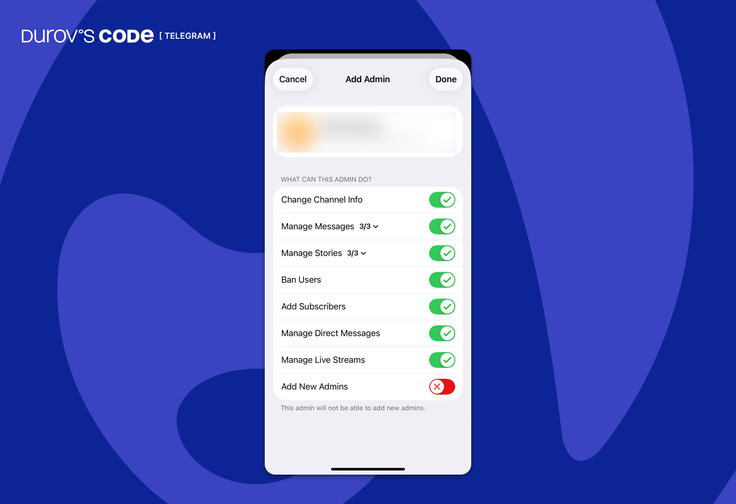
Administrator Management
For this, you need to carefully manage admin permissions:
Security recommendation: The "Add New Admins" permission grants nearly full channel control. Reserve this for trusted co-owners only.
Advanced Broadcasting Features
Telegram provides sophisticated tools for professional content delivery beyond basic text messages.
Scheduling and Silent Messages

For this, you need to:
- Compose your message as normal
- Long-press the Send button (mobile) or right-click Send (desktop)
- Select scheduling option:
- Schedule Message - set specific date and time
- Send Without Sound - deliver without notification sound
Strategic applications:
- Time zone optimization: Schedule posts for peak audience hours
- Content batching: Prepare multiple posts in advance
- Non-urgent updates: Send supplementary content without interrupting subscribers
Rich Media and File Sharing
Telegram supports:
- Large files: Up to 2 GB (4 GB with Premium)
- Media albums: Multiple photos/videos in single post
- Uncompressed media: Full-quality images and videos
- All file types: Documents, archives, presentations
For this, you need to optimize:
- Visual consistency: Maintain brand colors and styling
- File organization: Use descriptive filenames
- Quality standards: Ensure media displays well on mobile devices
Live Streaming Capabilities
Any channel can host live video broadcasts for unlimited viewers using external streaming software.
Setup requirements:
- Streaming software: OBS Studio, XSplit, or similar
- Stable internet: Upload speed matching stream quality
- Content preparation: Planned agenda and backup plans
Use cases:
- Product launches: Real-time announcements with Q&A
- Educational content: Webinars and tutorials
- Behind-the-scenes: Live event coverage
- Community engagement: Regular live sessions
Analytics and Performance Tracking
Understanding channel performance enables data-driven content and growth decisions.
Built-in Statistics (500+ Subscribers)
For this, you need to monitor key metrics:
Growth indicators:
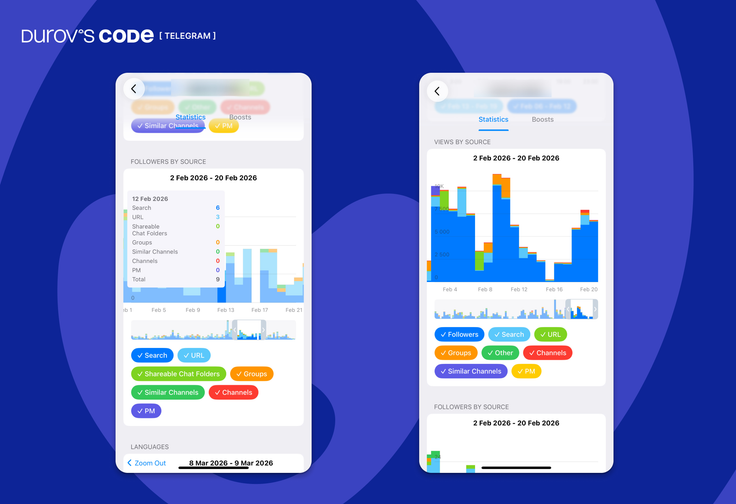
- New subscribers: Daily, weekly, monthly trends
- Unsubscribe rate: Content quality indicator
- Net growth: Overall audience development
- Source tracking: How people discover your channel
Engagement metrics:
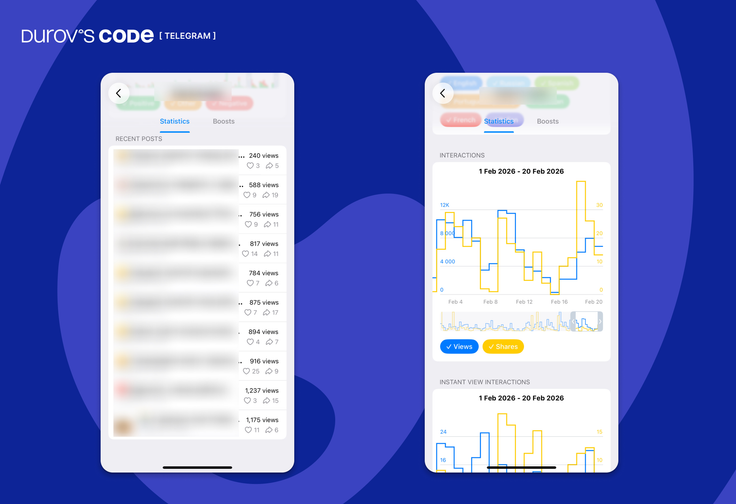
- Views per post: Content popularity measurement
- View completion: Audience retention for longer content
- Shares and forwards: Organic reach amplification
- Reaction patterns: Content sentiment analysis
Audience insights:
- Geographic distribution: Subscriber locations
- Language preferences: Content localization opportunities
- Active periods: Optimal posting times
- Device usage: Mobile vs desktop preferences
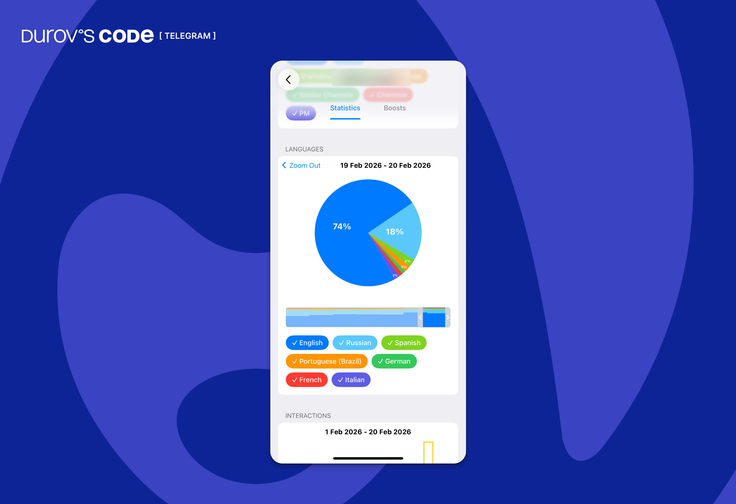
Important to note: View counts include views from forwarded copies, providing insight into viral potential and organic reach beyond direct subscribers. These numbers are approximate, and Telegram periodically resets view tracking after several days to protect user privacy.
Performance Optimization
For this, you need to analyze:
High-performing content identification:
- Topic resonance: Which subjects generate most engagement
- Format effectiveness: Text, video, image, or mixed media performance
- Optimal length: Attention span patterns for your audience
- Timing patterns: Best posting windows for maximum reach
Underperformance indicators:
- Low view counts: Content mismatch with audience interests
- High unsubscribe rates: Quality or frequency issues
- Poor engagement: Lack of reactions or comments
Data-driven improvements:
- Content strategy refinement: Double down on successful formats
- Posting schedule optimization: Align with audience active periods
- Topic adjustment: Focus on resonant themesFormat experimentation: Test new content types systematically
Growth Strategies and Promotion
Building a subscriber base requires strategic promotion beyond organic discovery.
Organic Growth Methods
Cross-platform promotion:
For this, you need to:
- Social media integration: Share channel link across all platforms
- Email signature inclusion: Add channel link to professional communications
- Website integration: Feature channel prominently on your site
- Content marketing: Create valuable content that naturally attracts subscribers
Network activation:
- Personal contacts: Invite relevant connections directly (first 200 subscribers only)
- Professional networks: Share in industry-specific communities
- Collaboration opportunities: Partner with complementary channels
Paid Promotion Options
Telegram Ads platform:
Available for channels with 1,000+ subscribers:
- Targeted advertising: Reach specific demographics
- Native integration: Ads appear naturally in similar channels
- Performance tracking: Detailed analytics and ROI measurement
Channel cross-promotion:
For this, you need to:
- Identify target channels in your niche with engaged audiences
- Contact channel owners about promotional opportunities
- Negotiate terms including post format, timing, and pricing
- Create compelling content with clear value proposition
- Track results using unique links or promotional codes
Investment considerations:
- Cost range: Variable depending on channel size and engagement
- ROI measurement: Track subscriber acquisition cost vs lifetime value
- Quality focus: Engagement rates matter more than raw subscriber counts
Common Mistakes to Avoid
Important to note: Most channel failures result from preventable configuration and strategy errors.
Critical Errors and Solutions
Inconsistent posting schedule:
- Problem: Irregular updates cause subscriber disengagement
- Solution: Create sustainable content calendar and maintain consistency
Poor channel branding:
- Problem: Generic appearance fails to communicate value or build recognition
- Solution: Invest in professional visual identity and consistent messaging
Ignoring audience feedback:
- Problem: One-way communication without considering preferences reduces engagement
- Solution: Enable comments, conduct polls, and respond to subscriber input
Buying fake subscribers:
- Problem: Inflated numbers with zero engagement damage credibility
- Solution: Focus on organic growth strategies attracting genuinely interested audiences
Neglecting security:
- Problem: Inadequate admin controls risk channel hijacking or content disasters
- Solution: Implement proper admin permissions and enable two-factor authentication
Monetization Opportunities
Successful channels can generate revenue through multiple channels aligned with audience value.
Platform-Native Options
Telegram advertising revenue:
- Eligibility: 1,000+ subscribers required
- Revenue split: 50% of ad revenue paid in TON cryptocurrency
- Control level: Minimal control over ad content and placement
Telegram Stars integration:
- Digital goods sales: Sell exclusive content, media access, or premium features
- Subscription tiers: Create paid subscriber levels with special access
- Payment processing: Telegram handles transactions seamlessly
External Monetization
Sponsored content partnerships:
- Rate ranges: Variable depending on audience size and engagement
- Brand alignment: Partner with relevant companies and products
- Disclosure requirements: Transparent sponsored content labeling
Product and service sales:
- Digital products: Courses, ebooks, templates, software
- Physical products: E-commerce integration and fulfillment
- Services: Consulting, coaching, professional services
- Event promotion: Tickets, workshops, conferences
Conclusion: Building Channels That Last
Creating a Telegram channel in 2026 takes minutes, but building one that consistently engages audiences and achieves meaningful goals requires strategic planning, consistent execution, and ongoing optimization.
Key success principles:
For content creators: Focus on delivering consistent value within a clear niche. The most successful channels solve specific problems or fulfill particular needs for their subscribers. Quality and reliability matter more than posting frequency.
For businesses: Telegram channels provide direct customer access without algorithmic interference. Use channels for product updates, customer support, exclusive offers, and community building while always prioritizing subscriber value over pure promotion.
For community builders: Combine channel broadcasting with linked discussion groups to maintain clean content delivery while enabling community interaction. This hybrid approach maximizes both reach and engagement.
Important to note: Channel success metrics should align with your goals. A channel with 1,000 highly engaged subscribers often delivers more value than one with 100,000 passive followers. Focus on engagement quality, goal achievement, and sustainable growth rather than vanity metrics.
For this, you need to remember: Start with clear objectives, maintain consistent posting schedules, actively engage with your audience through available tools, regularly analyze performance data, and continuously refine your approach based on results. Successful channels are built through sustained effort over months and years, not quick tactics or shortcuts.
The platform continues evolving with new features for monetization, analytics, and audience engagement. Whether for personal branding, business communication, or community building, Telegram channels offer powerful broadcasting capabilities that reward strategic thinking, quality content, and genuine audience value creation.








Editor’s pick