ChatGPT gets interactive tools and faster answers with GPT-6
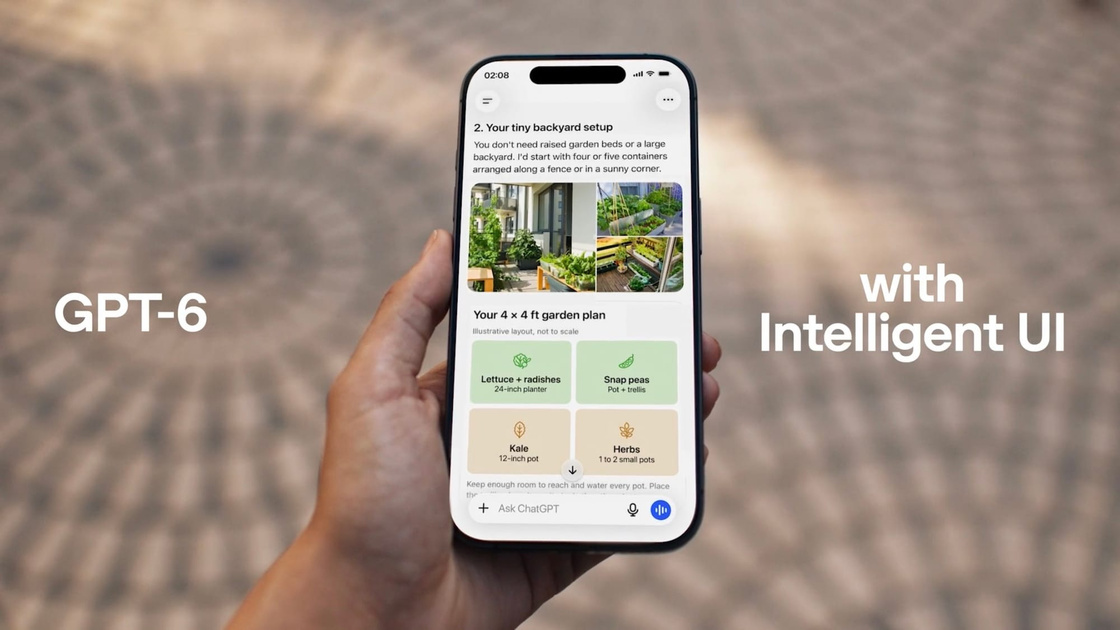
OpenAI is rolling out GPT-6 across ChatGPT, adding interactive tools and faster responses.
The update introduces Intelligent UI, which builds an interface around the question. ChatGPT can present comparisons side by side, explain concepts through clickable diagrams or create calculators with adjustable inputs. The model chooses how to combine text, graphics and controls, keeping a conventional text answer when that works best.
Users can explore routes on a map, navigate diagrams or adjust inputs in interactive tools. OpenAI says the interface uses reusable components that appear progressively as the model generates them.
GPT-6 can begin answering before it finishes reasoning, adding findings as it works. In the company’s internal tests, GPT-6 Instant started answering questions requiring web searches 44% sooner on average than GPT-5.6 Instant.
OpenAI also says GPT-6 improves the quality of search-based answers, making better decisions about when to look something up and finding supporting information more reliably. In an internal evaluation of difficult questions, it addressed the central issue more often than GPT-5.6.
In a separate evaluation of everyday tasks involving actions, GPT-6 Extra High began responding as quickly as GPT-5.6 Medium but achieved a higher overall score than GPT-5.6 Extra High.
The global rollout began on October 7 for Plus, Pro, Business and Enterprise subscribers, with access expanding to Free and Go from October 8. Paid plans use GPT-6 Sol, and Free and Go use GPT-6 Luna. Both are tuned for everyday conversations, and Enterprise access depends on workplace administrators’ settings.
The update applies to the Chat tab, leaving the models powering Work and Codex unchanged. Intelligent UI supports reasoning settings from Instant through Extra High, but it is unavailable with the Pro reasoning option or Voice. Pro subscribers can still use interactive answers at the supported settings.
Users who prefer fewer visuals can choose a simpler response style under Personalization > Layout and Visuals in ChatGPT’s web settings. Preferences can also be set through custom instructions or within individual conversations, although some visual elements may still appear, OpenAI says.